How to Change Your Git Username and Email
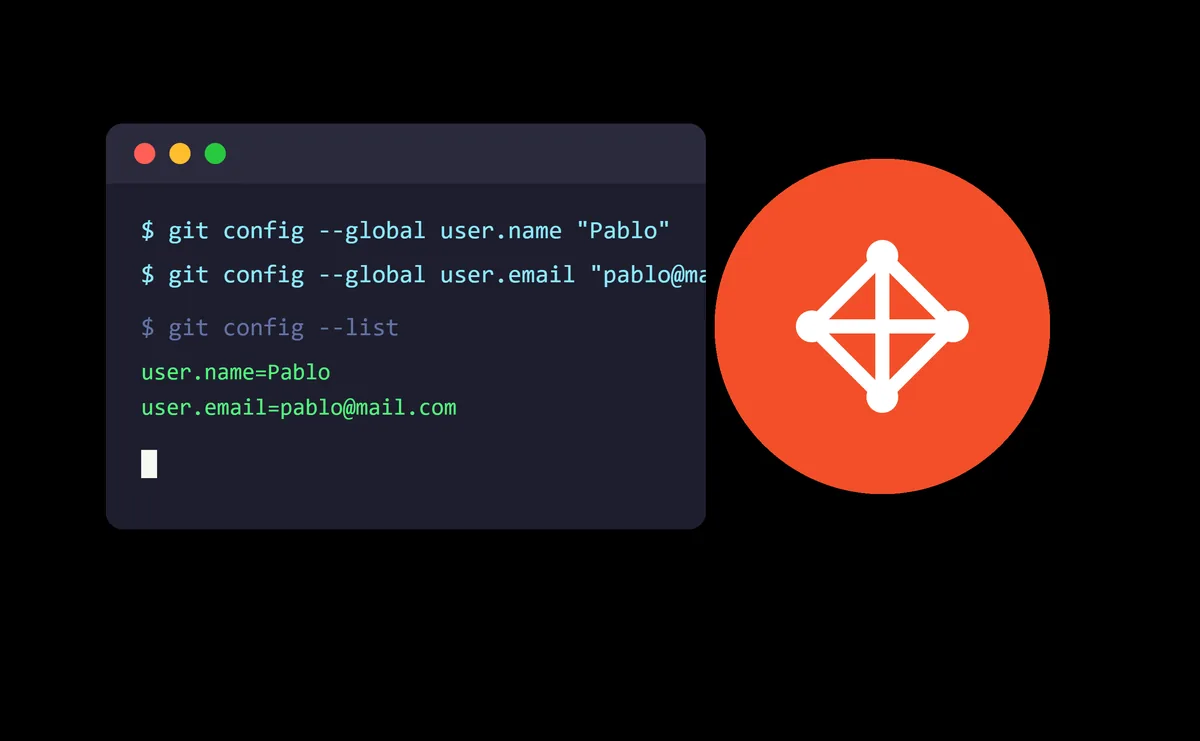
If you've ever cloned a repo with the wrong account, or just want to keep your work identity separate from your personal one in your commits, this is a two-minute fix with git config.
Global Configuration (all your repos)
This applies to all repositories on your machine, unless overridden by a local config (see below).
git config --global user.name "Your Name"
git config --global user.email "your@email.com"
Local Configuration (current repo only)
If you're inside a repository and run this, the local config overrides the global one, but only for that project:
git config user.name "Your Name"
git config user.email "your@email.com"
This is very useful if you use one email for work projects and another for personal ones, since it avoids mixing them up by accident.
Verifying It Worked
To check a specific value:
git config --get user.name
git config --get user.email
Or if you want to see the full configuration at once (global + local combined):
git config --list
Things to Keep in Mind
- This only affects new commits. Commits you already made keep the previous author. Changing the author on past commits requires rewriting history (
git rebase,git commit --amend, or tools likegit filter-repo), which is trickier and can break history on shared repos. - It's not the same as authentication credentials. If you use HTTPS with GitHub or Bitbucket, changing
user.nameanduser.emaildoesn't change the user/token you authenticate with when pushing or pulling. That's handled separately (credential manager, SSH keys, personal tokens, etc). - Tip: if you work across several projects with different emails, you can automate this with
includeIfin your.gitconfigso it picks the right user based on the repo's folder. Might be worth its own post.